Sugar
  • Introduction
    • To use the online version
  • New Sugar learners
  • F3, Home View, Favourites
  • View toolbar
    • Next up, Help Activity
  • Click on the Help Activity icon
  • Help Activity opens at Home page
  • The Frame
  • Navigating with the Frame
  • You might want to find My Settings
  • My Settings screen
  • Frame settings
  • Unhide the Terminal Acivity
  • F3, Home view, List
  • Scroll down
  • Return to the wheel view
  • Click on the Terminal Activity icon
  • Terminal Activity, ready
  • For help in Terminal Activity
  • Further help
  • Context sensitive Help
  • Social Help
  • Keyboard shortcuts
    • Workflow
    • Terminal Activity, Edit toolbar, showing Paste button
  • Demonstrating copy and paste with date
  • Here is the command
  • Use the mouse to select the command
  • Copy
  • Press F6, Frame key
  • Click on the Terminal Activity icon
  • Terminal opens
  • Open the Edit tab
  • Click the Paste button
  • Press Enter
  • Press F6, Frame key
  • Press SoaS Loader icon
    • If this is all new
  • Demonstration ends
    • Next up
  • Getting to work
    • Disk free
    • Unmount
    • Using the script
    • For a 2 GB USB stick
    • For a 4 GB USB stick
  • Command list
  • Disk free, select
  • Disk free, copy
  • Press F6, Frame key
  • Disk free, paste
  • Disk free, enter
  • Press F6, Frame key
  • Plug in the stick
  • Press F6, Frame key to switch to Terminal Activity
  • Disk free, re-run the command
  • Second disk free, enter
  • Press F6, Frame key
  • Establish the drive letter
    • Footnote
  • Unmount the target device
  • umount, select
  • umount, copy
  • Press F6, Frame key, to switch Activities
  • umount, paste
  • umount, edit
    • Showing edit in progress
  • umount, enter
  • Press F6, Frame key
  • Script, select
  • Script, copy
  • Press F6, Frame key, to switch Activities
  • Script, paste
  • Script, edit drive letter
  • Script, enter
  • Script running
  • Script finishes
  • Press F6, Frame key
  • Transcript
  • Boot Sugar on a Stick
  • For the curious
    • How did we decide the overlay and home size?
    • Need to know more?
    • Credits
  • Prerequisites
    • Stage 0, Download
    • Stage 1, Make bootable media
    • Stage 2, the subject of this tutorial
    • BIOS boot options
 
Sugar
  • Docs »
  • Scroll down
  • Edit on GitHub

Scroll downΒΆ

Scroll down the list of Activities, till you see Terminal Activity near the foot of the page. Right click on the Terminal Activity icon to reveal options, and click on Make favourite.
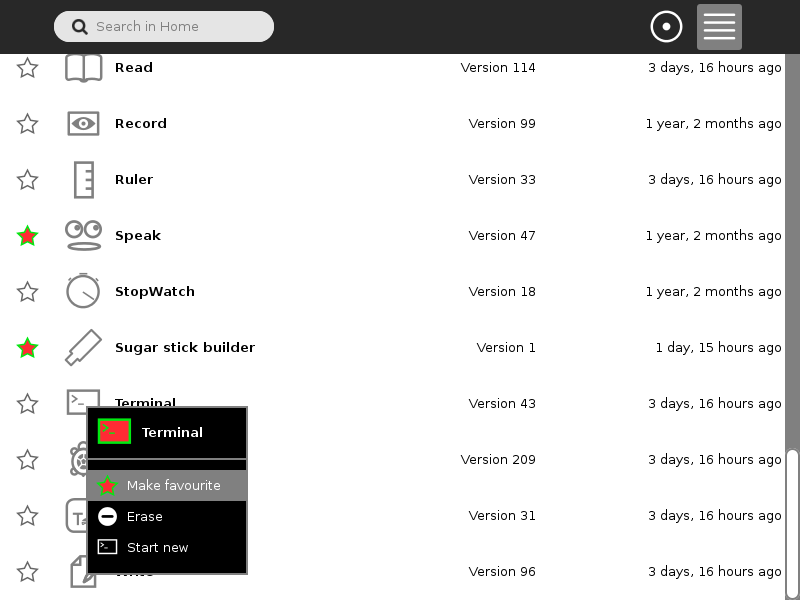
_images/015.png
Next Previous

© Copyright 2015, SugarLabs.

Built with Sphinx using a theme provided by Read the Docs.